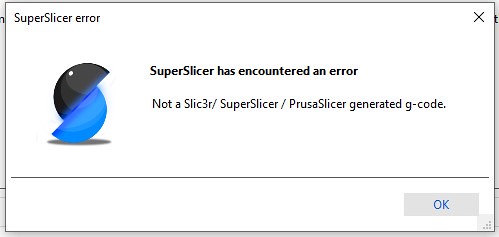
So I went on the raspberry pi forum and they helped me get the raspberry pi connected without internet.
This is what worked for me:
I shut off ICS, internet connection sharing in: settings> scroll down below Advanced network settings>network sharing center> top left, change adapter settings>right-click wifi> sharing tab at the top: make sure the boxes aren't checked.
In the wifi TCP/IPv4 settings> properties there is nothing, no addresses.
In settings> below advanced network settings at the bottom of the page, change adapter options>right click ethernet>select TCP/IPv4> select properties>entered 192.168.1.30 for IP address> 255.255.0.0 for subnet mask
Only option was to Use the following DNS server addresses, it wouldn't allow them to be addressed automatically.
In the DNS boxes I have 8.8.8.8 and 8.8.4.4. OK and close.
I did run angry IP scanner to make sure nothing else was playing in the 192.168.1. area.
Logged into putty.
Code:
Select all
sudo nmtui
copied that here
shift/insert to paste it into putty terminal window.
Since it was entered once, now the up arrow makes it appear.
Hit enter on edit a connection>again on Ethernet wired connection> scrolled down to IPv4 configuration addresses
and entered 192.168.1.30> scroll to the bottom right to hit enter OK, scroll down to back hit enter>scroll down to quit and hit enter.
Coming back later the pi changed that address to 192.168.1.254/24
Then I shut everything off, waited and turned the laptop and pi back on.
I shut off internet on the laptop and hit the raspberrypi.local and it connected.
I used a better print start macro.
First problem with that is I needed to add [exclude object] to the printer.cfg.
I added it near the top under my [include] stuff.
Then I got the all-too-common error of "out of range"? I think it was.
In Z stepper settings I had to set it below 0.
Which didn't seem safe but it worked.
position_min: -2
Next problem was solved by adding:
[firmware_retraction]
retract_length: 0.8
retract_speed: 60
unretract_extra_length: 0
unretract_speed: 60
near the bottom of the Extruder section, still in printer.cfg
Had to put klicky in the PRINT_START
Not sure how to post code on here.
But here's my print start:
#####################################################################
# A better print_start macro for v2/trident
#####################################################################
## *** THINGS TO UNCOMMENT: ***
## Bed mesh (2 lines at 2 locations)
## Nevermore (if you have one)
## Z_TILT_ADJUST (For Trident only)
## QUAD_GANTRY_LEVEL (For V2.4 only)
## Beacon Contact logic (if you have one. 4 lines at 4 locations)
[gcode_macro PRINT_START]
gcode:
# This part fetches data from your slicer. Such as bed, extruder, and chamber temps and size of your printer.
{% set target_bed = params.BED|int %}
{% set target_extruder = params.HOTEND|int %}
{% set target_chamber = params.CHAMBER|default("45")|int %}
{% set target_chamber_minimal = params.CHAMBER_MINIMAL|default("0")|int %}
{% set target_chamber_wait = [target_chamber, target_chamber_minimal]|select(">", 0)|min|default(0) %}
{% set x_wait = printer.toolhead.axis_maximum.x|float / 2 %}
{% set y_wait = printer.toolhead.axis_maximum.y|float / 2 %}
## Uncomment for Beacon Contact (1 of 4 for beacon contact)
#SET_GCODE_OFFSET Z=0 # Set offset to 0
# Clear any lingering pause states
CLEAR_PAUSE
# Home the printer, set absolute positioning and update the Stealthburner LEDs.
STATUS_HOMING # Set LEDs to homing-mode
G28 # Full home (XYZ)
G90 # Absolute position
## Uncomment for bed mesh (1 of 2 for bed mesh)
BED_MESH_CLEAR # Clear old saved bed mesh (if any)
# Check if the bed temp is higher than 90c - if so then trigger a heatsoak.
{% if params.BED|int > 90 %}
SET_DISPLAY_TEXT MSG="Bed: {target_bed}c" # Display info on display
STATUS_HEATING # Set LEDs to heating-mode
M106 S255 # Turn on the PT-fan
## Uncomment if you have a Nevermore.
#SET_PIN PIN=nevermore VALUE=1 # Turn on the nevermore
G1 X{x_wait} Y{y_wait} Z15 F9000 # Go to center of the bed
M190 S{target_bed} # Set the target temp for the bed
SET_DISPLAY_TEXT MSG="Heatsoak: {target_chamber_wait}c" # Display info on display
TEMPERATURE_WAIT SENSOR="temperature_sensor chamber" MINIMUM={target_chamber_wait} # Waits for chamber temp
# If the bed temp is not over 90c, then skip the heatsoak and just heat up to set temp with a 5 min soak
{% else %}
SET_DISPLAY_TEXT MSG="Bed: {target_bed}c" # Display info on display
STATUS_HEATING # Set LEDs to heating-mode
G1 X{x_wait} Y{y_wait} Z15 F9000 # Go to center of the bed
M190 S{target_bed} # Set the target temp for the bed
SET_DISPLAY_TEXT MSG="Soak for 5 min" # Display info on display
G4 P1000 # Wait 5 min for the bedtemp to stabilize
{% endif %}
# Heat hotend to 150c. This helps with getting a correct Z-home.
SET_DISPLAY_TEXT MSG="Hotend: 150c" # Display info on display
M109 S150 # Heat hotend to 150c
## Uncomment for V2.4 (Quad gantry level AKA QGL)
SET_DISPLAY_TEXT MSG="Leveling" # Display info on display
STATUS_LEVELING # Set LEDs to leveling-mode
QUAD_GANTRY_LEVEL # Level the printer via QGL
G28 Z # Home Z again after QGL
## Uncomment for bed mesh (2 of 2 for bed mesh)
SET_DISPLAY_TEXT MSG="Bed mesh" # Display info on display
STATUS_MESHING # Set LEDs to bed mesh-mode
BED_MESH_CALIBRATE # Start the bed mesh (add ADAPTIVE=1) for adaptive bed mesh
## Uncomment for Klicky auto-z
SET_DISPLAY_TEXT MSG="Z-offset" # Displays info
CALIBRATE_Z # Calibrates Z-offset with klicky
# Heat up the hotend up to target via data from slicer
SET_DISPLAY_TEXT MSG="Hotend: {target_extruder}c" # Display info on display
STATUS_HEATING # Set LEDs to heating-mode
G1 X{x_wait} Y{y_wait} Z15 F9000 # Go to center of the bed
M107 # Turn off partcooling fan
M109 S{target_extruder} # Heat the hotend to set temp
# Get ready to print by doing a primeline and updating the LEDs
SET_DISPLAY_TEXT MSG="Printer goes brr" # Display info on display
STATUS_PRINTING # Set LEDs to printing-mode
G0 X{x_wait - 50} Y175 F10000 # Go to starting point
G0 Z.4 # Raise Z to 0.4
G91 # Incremental positioning
G1 X100 E20 F1000 # Primeline
G90 # Absolute position
Auto z is working great.
I can run it then bring the nozzle down to .076mm with the controls in mainsail and the .076mm (.003") feeler gauge slides snuggly under it.
Couldn't figure out how to actually print for a while.
All the videos and tutorials basically just say "then print".
In the SuperSlicer "Gcode preview" tab, at the lower right there is an "Export G-code" button
and just to the right of that is a G>.
A window pops up that allows "Upload and Print"
Click that and it all starts running through the routine.
I tried to print Ellis's First layer squish square from here.
Ellis’ Print Tuning Guide
ellis3dp.com
One little patch in the center was the goal.
(First_Layer_Patch-0.25mm.stl
It prints kind of, but not really.
It prints a layer so thin it's basically painted on, thin as spray paint.
Using PLA at 202C.
It has the nozzle so close to the bed at .25mm that it won't let the plastic flow, the extruder is clicking.
Not sure what I'm doing wrong. A quarter of a mm does sound pretty thin.
That's what I put in the slicer.
Still Fun/exciting to watch it go through all the steps.
For most of you I'm sure that excitement has worn off.
Nervously waiting for the point where it actually pushes out some plastic. With my finger on the emergency stop.
It looked like it was dragging across the plate, it was riding so low.
Thought I scratched it, but it's just leaving a thin almost imperceivable trail of plastic.
Like some dog dragging it's butt across the carpet.
So I pushed out my first plastic but haven't really even calibrated it yet.
Do you folks use the SuperSlicer calibration stuff or Ellis's?
I'll work toward posting a video.
Any suggestions appreciated.